
Article: How to Pause Coffee Subscription Services

How to Pause Coffee Subscription Services
Table of Contents
- Why Pause Instead of Cancel Your Coffee Subscription
- Accessing Your Subscription Dashboard
- How to Pause Your Coffee Subscription
- How to Skip a Single Coffee Shipment
- How to Change Your Coffee Delivery Date
- Managing Delivery Frequency and Billing Cycle
- Resuming Your Subscription After a Pause
- How to Cancel Your Coffee Subscription
- Common Mistakes to Avoid When Pausing
- Troubleshooting Login and Access Issues
- Frequently Asked Questions
Last Updated: September 21, 2026
Why Pause Instead of Cancel Your Coffee Subscription
Learning how to pause coffee subscription is fundamentally different from canceling it. When you pause a coffee subscription, your account stays active and your membership status remains intact. You'll resume exactly where you left off without losing any benefits or having to re-enter your payment information.
Canceling, by contrast, closes your account entirely. You lose access to your subscription dashboard, any stored preferences, and member-only perks. If you change your mind later, you'll need to start fresh as a new customer.
The choice matters because life happens. Vacations come up. You might accumulate more coffee than you can drink. A change in your routine could mean you don't need weekly deliveries for a few weeks. Pausing handles all these situations without the friction of cancellation.
At Happy Bear Coffee, we know our customers' coffee needs shift seasonally. Whether you're traveling, managing inventory, or just taking a break, pausing gives you flexibility without penalty.
Accessing Your Subscription Dashboard
Your subscription dashboard is the control center for everything related to your coffee subscription. It's where you view your upcoming shipments, manage your billing cycle, and access pause options. The path to reach it varies significantly depending on whether you're using a web browser or mobile app, and understanding both will save you time.
Browser Access
Log in to your account using your email address and password on the subscription service's website. Once authenticated, look for a "Subscriptions," "My Account," "Manage Orders," or "Account Settings" link. This typically appears in the top navigation menu, in a dropdown under your profile name in the upper right corner, or in a left-side navigation panel.
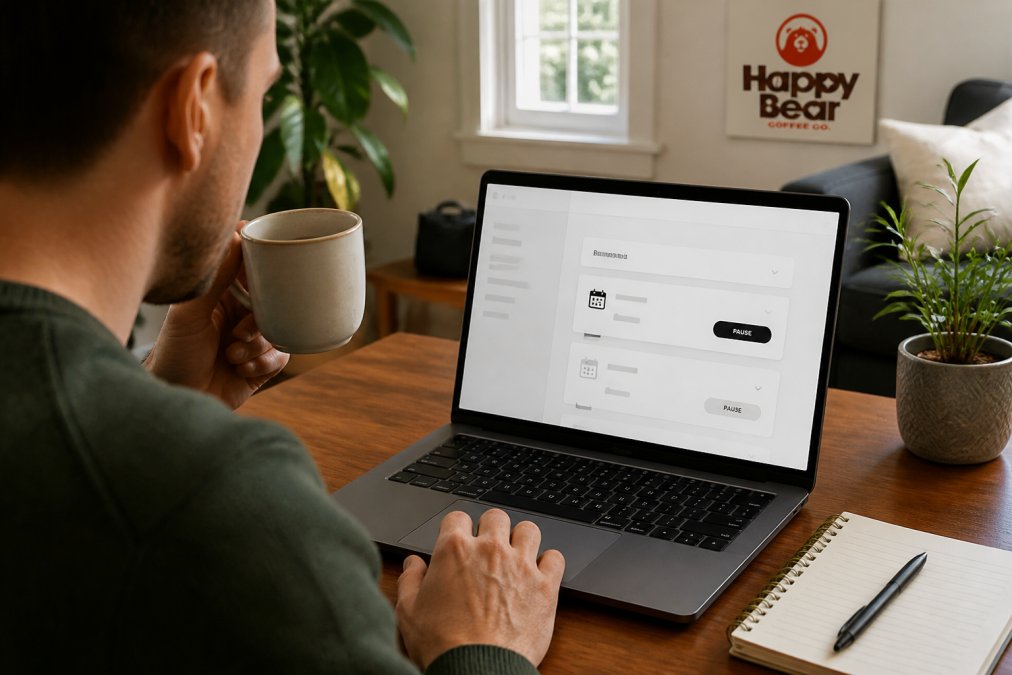
The dashboard displays your current subscription status, next delivery date, billing information, shipping address, and subscription history. You'll see buttons or links for managing your subscription here, this is where pause, skip, and resume options live. Most browsers also allow you to bookmark this page for faster access on future visits.
Mobile App Access
Mobile apps use a fundamentally different navigation structure than the browser version. Open the app and look for a profile icon, account icon, or menu icon (three horizontal lines) at the bottom or top of the screen.
Tap the profile or account icon. This usually opens a menu with options like "My Account," "Subscriptions," "Orders," or "Settings." Select "Subscriptions" or "My Subscriptions." This tab consolidates all subscription management features into one screen, unlike the browser version which may spread them across multiple pages.
On mobile, subscription details are often displayed in a card or list format. Swipe left or right on the subscription card to reveal action buttons, or tap the subscription itself to expand full details. The pause option may appear as a button directly on the card or within an expanded menu after tapping.
Key Differences Between Browser and Mobile
Navigation depth: Browser dashboards often require 2-3 clicks to reach pause options. Mobile apps typically require only 1-2 taps because the interface is condensed.
Visual layout: Browsers display subscription information in tables or detailed sections. Mobile apps use cards, collapsible menus, or swipeable interfaces to save screen space.
Button placement: On browsers, pause buttons are usually grouped with other management options in a horizontal or vertical menu. On mobile, they may be hidden behind a "More" menu or revealed by swiping.
Confirmation screens: Mobile apps often use pop-up dialogs for confirmations. Browsers may open a new page or expand an inline form.
Troubleshooting Access Issues
If you can't find your dashboard after logging in, check your email for a "Welcome," "Account Confirmation," or "Subscription Activated" message. These emails often contain a direct link to your subscription settings.
On mobile, if the app doesn't show a "Subscriptions" tab, update the app to the latest version. Older app versions sometimes lack this feature. Check your device's app store (Apple App Store or Google Play Store) for pending updates.
If you're logged in but the dashboard appears blank or shows an error, try logging out and logging back in. Close the app completely (not just minimize it) before reopening. On browsers, clear your cache and cookies, then reload the page.
How to Pause Your Coffee Subscription
Pausing your subscription involves three straightforward steps. The process is designed to be quick so you can get back to your day. Most users complete it in under three minutes. However, before you pause, understand what happens to your account, billing, and benefits during the pause period.
Step 1: Log into Your Account
Open your browser and navigate to the subscription service's website. Enter your email address in the login field. Type your password and click "Log In" or press Enter.
If you've forgotten your password, click "Forgot Password" on the login page. The service will send a reset link to your email. Follow that link, create a new password, and then log in with your updated credentials.
For mobile app users, open the app and tap the profile or account icon. Enter your login information the same way. Once authenticated, you'll see your dashboard.
Step 2: Navigate to Subscription Settings
Once logged in, find the section that displays your active subscriptions. This section typically shows your next delivery date, the products in your subscription, and your billing cycle. Look for a button labeled "Manage," "Settings," "Edit," or "Pause."
Click on the subscription you want to pause. If you have multiple subscriptions, select the specific one. The page will expand to show detailed options for that subscription.
Scroll down to find the pause option. It's usually grouped with other management features like "Skip This Shipment," "Change Delivery Date," or "Cancel Subscription." Read the label carefully so you select "Pause" and not another option.
Step 3: Select Pause Option and Duration
Click the "Pause" button. A confirmation window or new page will appear asking you to confirm your choice and specify how long you want to pause. Common options include:
- One month - Best for short absences like a long weekend or brief travel.
- Three months - Suitable for extended vacations or seasonal inventory buildup.
- Indefinite - Pauses your subscription with no automatic resume date. You must manually restart it.
Select your preferred duration. Review the information displayed, which should confirm your subscription name, current pause status, and when your subscription will resume if you don't manually restart it sooner.
What Happens to Your Account During a Pause
Billing: Your payment method will not be charged while paused. No shipments will process, and no charges will appear on your statement. If you pause mid-cycle, you will not receive a refund for the current billing period, the pause takes effect on your next scheduled charge date.
Loyalty points and rewards: Most subscription services maintain your loyalty points balance during a pause. However, some services do not award new points while paused. Check your service's terms or contact support to confirm whether points accrue during your pause period.
Promotional pricing and discounts: If you subscribed at a promotional rate (e.g., "first three months 20% off"), pausing typically does not affect your rate when you resume. Grandfathered pricing, special rates locked in at signup, is almost always preserved through a pause. However, time-limited promotional discounts may expire if your pause extends beyond the promotion window. Review your confirmation email or account details before pausing if you're unsure.
Marketing emails: Pausing your subscription does not automatically unsubscribe you from marketing emails. You will continue to receive promotional messages, new product announcements, and special offers while paused. If you want to stop marketing emails during your pause, log into your account settings and find the "Email Preferences" or "Communication Settings" section. Uncheck the boxes for promotional emails. You can re-enable them when you resume.
Account access: Your account remains fully active. You can still view your order history, update your payment method, change your shipping address, and manage your preferences. You simply won't receive deliveries until you resume.
Confirming Your Pause
Once you've selected your pause duration, click "Confirm Pause" or "Apply Pause." You'll see a success message confirming that your subscription is now paused. Your next scheduled delivery will not ship. Save or screenshot this confirmation for your records.
You should also receive a confirmation email within a few minutes. This email will state your pause start date, pause end date (if you selected a specific duration), and instructions for resuming early if needed.
How to Skip a Single Coffee Shipment
Skipping a single shipment is different from pausing your entire subscription. When you skip, your subscription stays active and resumes on the following delivery cycle. This works well if you need to miss just one or two deliveries.
Variety Pack of 8 Single Serve Brew Bag →
Find your subscription in your dashboard. Look for a "Skip This Shipment" or "Skip Next Delivery" button. Click it. A confirmation message will appear asking you to verify your choice.
Confirm the skip. Your next scheduled shipment will be pushed forward by one billing cycle. For example, if you normally receive coffee every two weeks and you skip, your next delivery will be four weeks away instead of two.
How to Change Your Coffee Delivery Date
Adjusting your delivery date lets you align your shipments with your actual coffee consumption. If you're running low faster than expected, move your delivery date earlier. If you have plenty on hand, push it back.
Log into your subscription dashboard. Find your active subscription and click "Edit" or "Manage." Look for an option labeled "Delivery Date," "Shipping Date," or "Next Delivery."
Click that option. A calendar will appear showing available delivery dates. Select your preferred date and confirm. The system will update your billing cycle to match the new delivery schedule.
Keep in mind that changing your delivery date may shift your billing date as well. Review the confirmation screen to ensure the new billing cycle works for your budget.
Managing Delivery Frequency and Billing Cycle
Your delivery frequency determines how often coffee arrives at your door. Common options include weekly, biweekly, monthly, or custom intervals. Adjusting frequency is one of the most effective ways to manage your inventory without pausing entirely.
Access your subscription settings and find the "Frequency" or "Delivery Interval" option. A dropdown menu will show available intervals. Select the one that matches your consumption rate.
If you drink coffee quickly, weekly or biweekly makes sense. If you're a lighter consumer or prefer to stock up, monthly or every six weeks works better. Some services let you set a custom interval (every 21 days, for example).
After changing your frequency, your next billing date will adjust accordingly. The system will calculate your new billing cycle based on the interval you selected.
| Action | Best For | Time to Process |
|---|---|---|
| Pause | Extended breaks (vacation, excess inventory) | Immediate |
| Skip | Single shipment delay | Immediate |
| Change Frequency | Long-term adjustment to consumption | Next billing cycle |
| Change Delivery Date | One-time timing adjustment | Immediate |
Resuming Your Subscription After a Pause
Resuming is as simple as pausing. Log back into your subscription dashboard and find your paused subscription. You'll see a "Resume" or "Reactivate" button where the pause option was.
Click the resume button. A confirmation screen will appear showing your subscription details and your new next delivery date. Confirm the action. Your subscription is now active again.
Your next shipment will process according to your standard billing cycle. If you paused for three weeks and your normal cycle is biweekly, your next delivery might be sooner than usual to get back on schedule.
Some services let you choose a custom resume date before reactivating. If that option appears, select when you want your subscription to restart. Otherwise, the system will resume on the next scheduled delivery date based on your original cycle.
How to Cancel Your Coffee Subscription
Canceling is permanent and closes your account. Use this option only if you're certain you won't return. Before canceling, consider pausing instead. You can always resume later without the hassle of re-entering your information.
Log into your subscription dashboard. Find your subscription and look for a "Cancel Subscription" button. It's often placed at the bottom of the management options and may be styled differently (sometimes in red or a warning color) to indicate it's a significant action.
Click cancel. Most services require you to confirm your cancellation and may ask why you're leaving. Provide feedback if you're comfortable doing so. This helps the business improve.
After confirmation, you'll receive an email confirming your cancellation. Your account is now closed. If you change your mind within a few days, contact customer support to see if they can reactivate it. After that window closes, you'll need to create a new account.
Common Mistakes to Avoid When Pausing
One frequent mistake is pausing without setting a resume date. If you pause indefinitely, you might forget about your subscription entirely. Set a calendar reminder for when you plan to resume so you don't lose track.
Another error is confusing pause with skip. Some people pause thinking they're just skipping one shipment, then wonder why their subscription didn't restart automatically. Remember: pause stops everything. Skip delays just one delivery.
Don't pause without checking your pause duration. Some services default to pausing for one month. If you need three months, you'll have to re-pause after one month passes. Read the confirmation screen carefully.
Avoid pausing right before a billing date. If your next charge is in two days and you pause, that charge might still process. Pause earlier in your billing cycle to avoid confusion. Check your billing date before pausing.
Some people pause and then forget they have an active subscription at all. This leads to surprise charges months later when they forget to resume. Keep a note in your email or calendar about your paused subscriptions.
Troubleshooting Login and Access Issues
If you can't log in, the most common cause is a forgotten password. Click "Forgot Password" on the login page. Enter your email address. The service will send a password reset link. Check your spam folder if you don't see it in your inbox within five minutes.
If the reset email never arrives, verify you're using the correct email address. Some people have multiple email addresses and forget which one they used to sign up. Try logging in with your alternate email if you have one.
Clear your browser cache and cookies, then try logging in again. Cached data sometimes causes login issues. After clearing, close your browser completely and reopen it before attempting to log in.
If you're using a mobile app and can't log in, try logging in through the website instead. App-specific login issues are usually resolved by updating the app to the latest version. Check your device's app store for updates.
For account access problems that persist, contact customer support directly. Provide your email address and a brief description of the issue. Support teams can verify your identity and regain your access within one business day.
Managing your coffee subscription doesn't have to be complicated. Whether you need to pause for a vacation, skip a single shipment, or adjust your delivery frequency, these tools give you complete control over when and how often you receive your coffee. At Happy Bear Coffee, we designed our subscription dashboard to make these changes simple and immediate. Explore your account settings today and customize your delivery schedule to match your lifestyle.
Frequently Asked Questions
How can I pause my coffee subscription without losing my account?
Pausing your subscription preserves your account, membership status, and loyalty points. Log into your subscription dashboard, navigate to account settings, and select the pause option. Your account remains active with all your preferences saved. When you're ready to resume, your delivery settings and payment method are still on file, making it simple to restart without re-entering information.
Is it better to pause or cancel a coffee subscription?
Pause your subscription if you plan to return within a few months, it keeps your account active, preserves any loyalty benefits, and saves your preferences. Cancel only if you're certain you won't resubscribe. Pausing is ideal for travel, temporary inventory buildup, or budget adjustments. Cancellation is permanent and may require you to set up a new account if you change your mind later.
Can I skip a single coffee shipment instead of pausing the whole service?
Yes, most subscription services allow you to skip individual deliveries without pausing your entire subscription. In your subscription dashboard, locate the upcoming shipment and select skip or delay. This keeps your subscription active and your regular schedule intact while giving you flexibility for that one delivery cycle.
What happens to my loyalty points when I pause my subscription?
Your loyalty points and membership benefits typically remain on your account during a pause. However, you won't earn new points while paused, and some programs may have restrictions on point redemption during inactive periods. Check your subscription provider's membership policy or contact customer support to confirm how your specific rewards program handles paused accounts.


Leave a comment
This site is protected by hCaptcha and the hCaptcha Privacy Policy and Terms of Service apply.